· 18 min read
My Neovim Setup
From VS Code RAM hog to a 35-plugin Neovim setup that's faster, cleaner, and actually sparks joy.
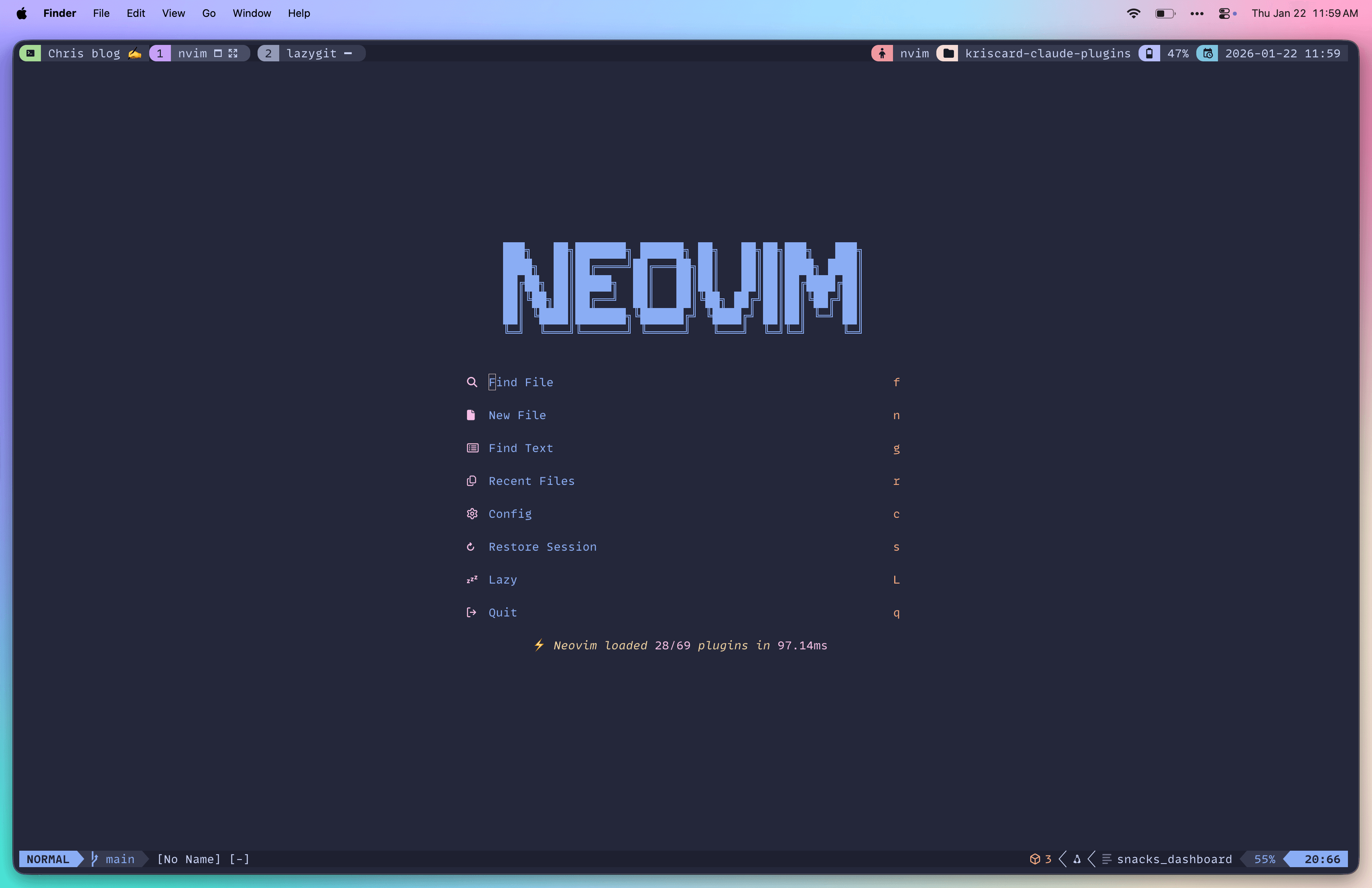
Remember when I said I fell into a rabbit hole of terminal tools in Part 1? Well, I wasn't done falling.
After seeing Thdxr's (opens in a new tab) Neovim setup on Twitch (opens in a new tab), I knew I had to try it.
To be honest my first custom setup was horrible. I had some many bad keybindings, I was using too much plugins, and was passing more time debugging my config than writing code. I think I was trying to recreate VS Code in Neovim and it was not the right approach to take. So I decided to use a distribution and lean on LazyVim (opens in a new tab). I used it for almost two years. During this time I looked many times in the source code to learned how we should set up Neovim correctly and what having good keybindings really means.
During this time, I discovered many developers on YouTube and Twitter (or X if you prefer) who shared publicly their dotfiles on GitHub and learned so much from them. Here are some of the devs who really guided my Neovim journey and inspired me to build my own setup:
- ThePrimeagen (opens in a new tab)
- TJ DeVries Nvim kickstarter (opens in a new tab)
- LazyVim Source code (opens in a new tab)
- Nick Nisi (opens in a new tab)
- Josh Medeski (opens in a new tab)
- LLCoolChris (opens in a new tab)
- Dillon Mulroy (opens in a new tab)
- Omerxx from DevopsToolbox on Youtube (opens in a new tab)
What follows is how I set up my Neovim setup and try to do my best to make it fast, easy to maintain, and mostly nice to use.
The "Neovim Is Hard" Myth
Let's be honest Neovim used to have a bad rep as something really hard to grasp. A few years ago, setting up yourself your LSPs, completion system, and fuzzy finding was really a good recipe on how to get a migraine quickly. Also the fact that the Neovim ecosystem relies on community contributions as mostly everything is open source, can be also difficult to handle. Because of new breaking changes or worse the plugins don't have any maintainers anymore or contributions since a long time. I really love Open Source but I can understand if someone want to have only stable plugins for its IDE. I can't count how many times I opened Neovim to discover some random errors when everything worked completely fine the day before.
But the real issue was not the open source plugins itself, but the fact that I didn't know how to set up Neovim properly. I was trying to copy paste configurations from different sources without really understanding what I was doing and how things work.
I had to dive deeply into how Neovim works, how LSPs work, and how to configure plugins properly to avoid having issues later on. Of course AI tools like Claude Code can help but at the end of the day you need to understand what you are doing.
TJDevries made some great YouTube videos (opens in a new tab) that helps me a lot to join the dots.
Now when building a Neovim config from scratch, we have tools like lazy.nvim (opens in a new tab) for plugin management, Snacks.nvim (opens in a new tab) as an all-in-one toolkit, and Mason (opens in a new tab) for one-click language server installation. The ecosystem has matured so much that configuring Neovim feels less daunting than it used to be. We also have now so many good resources out there that will help you to start your Neovim journey pretty quickly.
One thing worth highlighting: I think that Neovim users tend to be fundamentally curious developers who like diving into how things work, and aren't afraid to read source code or at least the Vim Wiki. Embracing this mindset makes learning Neovim less intimidating and more fun. You're not just copying configs; you're understanding why things are set up that way. I did that mistake and waste a lot of time time with that. I'm still learning every day and make mistake and break my config sometime but I have more a feeling of ownership of my config more than before.
That said, Neovim can still feel overwhelming at first. The key is to start small, focus on some core features, and gradually build up your setup as you get more comfortable with your current plugins and keybindings. You can event just try to use a neovim plugin inside VS Code/Cursor to least learned about Vim motions without leaving the comfort of your IDE.
Enough chit chat! Let's start diving into my setup.
The Foundation: Modular Architecture
As entry point I try to keep everything modular with one file per concern. Here's the basic structure:
-- ~/.config/nvim/init.lua
require("kriscard")
That loads my main config file, which just requires other modules:
-- ~/.config/nvim/lua/kriscard/init.lua
require("kriscard.lazy")      -- Plugin manager
require("kriscard.options")   -- Vim settings
require("kriscard.keymaps")   -- Global keybindings
require("kriscard.autocmds")  -- Auto commands
Each plugin gets its own file in so when something breaks, I know exactly where to look. When I want to try a new plugin, I drop in a new file.
lazy.nvim handles the rest:
-- ~/.config/nvim/lua/kriscard/lazy.lua
vim.g.mapleader = " "  -- Space as leader key

require("lazy").setup({
  spec = {
    { import = "plugins" },  -- Load everything in lua/plugins/
  },
  checker = { enabled = true },  -- Auto-check for updates
})
The Plugin Stack That Matters
You don't need to install every plugin that's available out there, you need maybe to aim for the core ones. Here's what actually matters in my opinion:
LSP: The heart of Your IDE
So Language Server Protocol is a big topic in Neovim or any IDE out there to be honest. This is the heart of your IDE and also the place where you can create a mess pretty quickly (mine still his but I know how to modify it). In a nutshell, Language Server Protocol gives you:
- Go to definition, find references, hover documentation
- Rename symbols across your entire codebase
- Code actions (auto-fix imports, extract to variable, etc.)
- Inlay hints for function parameters and types
- Real-time diagnostics and error checking
Mason makes installation of new LSPs trivial. Run :Mason or Space cm, search for any language server, press i to install the LSP or x to remove it. You can also use Mason to install formatters, linters, and Dap, so you have everything in one place.
Here are the language servers I'm currently using mostly oriented toward web development:
-- Core web development
vtsls           -- TypeScript (optimized for performance)
eslint          -- JavaScript linting with auto-fix
biome           -- Multi-format support (JS, TS, JSON, CSS)
tailwindcss     -- CSS autocomplete
html, cssls     -- HTML and CSS
emmet_ls        -- HTML abbreviations

-- Backend & systems
lua_ls          -- Lua (Neovim config editing)
rust_analyzer   -- Rust
gopls           -- Go

-- Data & APIs
prismals        -- Prisma ORM
sqlls           -- SQL
graphql         -- GraphQL

-- DevOps & config
bashls          -- Shell scripts
dockerls        -- Dockerfiles
jsonls, yamlls  -- Config files

-- Documentation
marksman        -- Markdown
mdx_analyzer    -- MDX (blog posts)
My TypeScript setup is heavily optimized. I use vtsls instead of the default ts_ls because it's faster and uses significantly less memory:
vtsls = {
  settings = {
    typescript = {
      updateImportsOnFileMove = { enabled = "always" },
      preferences = {
        importModuleSpecifierPreference = "non-relative",
      },
      inlayHints = { enabled = false },  -- Reduces visual noise
    },
    vtsls = {
      autoUseWorkspaceTsdk = true,
      experimental = {
        maxInlayHintLength = 30,
        completion = {
          enableServerSideFuzzyMatch = true,
        },
      },
    },
  },
  -- Performance: Reduce memory footprint for large codebases
  init_options = {
    preferences = {
      disableSuggestions = false,
    },
  },
}
This configuration keeps TypeScript responsive even in massive React monorepos. No more waiting 5 seconds for autocomplete.
The keybindings work across all LSP enabled files:
gd              -- Go to definition
gr              -- Find references
K               -- Hover documentation
<leader>rn      -- Rename symbol
<leader>ca      -- Code actions
<leader>e       -- Show line diagnostics
]d / [d         -- Next/previous diagnostic
Blink.cmp: Modern Completion
For autocompletion, I recently switched to blink.cmp (opens in a new tab). It's fast, written in Rust, and the defaults are really well thought. Type, see suggestions, Tab to accept. It pulls from your LSP, snippets, and buffer text.
Snacks.nvim: The Swiss Army Knife
Snacks.nvim (opens in a new tab) by folke is the best decision I made. It replaced what used to be four separate plugins (Telescope, toggleterm, dashboard, and nvim-notify) with a single, cohesive toolkit:
- Picker: Fuzzy find files, grep, git branches, LSP symbols, diagnostics
- Dashboard: Clean startup screen with recent files and projects
- Terminal: Toggle terminal with one keybind
- Notifier: Beautiful, non-intrusive notifications (with smart filtering - bye Copilot spam)
- Git integration: LazyGit with custom Catppuccin theming, browse branches, logs, diffs
- Zen/Zoom: Distraction-free editing modes
- Indent guides: Scope-aware indentation visualization
- Scratch buffers: Quick throwaway files for experiments
The keybindings are all muscle memory now:
-- Core navigation
{ "<leader><space>", Snacks.picker.smart, desc = "Smart Find Files" }
{ "<leader>/", Snacks.picker.grep, desc = "Grep" }
{ "<leader>ff", Snacks.picker.files, desc = "Find Files" }
{ "<leader>fg", Snacks.picker.git_files, desc = "Git Files" }
{ "<leader>fr", Snacks.picker.recent, desc = "Recent Files" }

-- Git workflow
{ "<leader>gb", Snacks.picker.git_branches, desc = "Git Branches" }
{ "<leader>gs", Snacks.picker.git_status, desc = "Git Status" }
{ "<leader>gg", Snacks.lazygit, desc = "Lazygit" }

-- LSP navigation
{ "gd", Snacks.picker.lsp_definitions, desc = "Go to Definition" }
{ "gr", Snacks.picker.lsp_references, desc = "Find References" }
{ "<leader>ss", Snacks.picker.lsp_symbols, desc = "Document Symbols" }
<leader> is Space. So Space ff opens file finder. Space / greps the entire project. Space gg launches LazyGit with my Catppuccin Macchiato theme. I will present a lot of keybindings but with time you will build some muscle memory, and everything will feel natural.
Harpoon: Your new way to Bookmark Files
Harpoon (opens in a new tab) by ThePrimeagen (opens in a new tab) solves a simple problem: if you're always jumping between the same 3-5 files when working on a feature. Why fuzzy-find them every time?
-- All under <leader>h prefix
{ "<leader>ha", function() harpoon:list():add() end, desc = "Add File" }
{ "<leader>hh", function() harpoon.ui:toggle_quick_menu(harpoon:list()) end, desc = "Quick Menu" }
{ "<leader>hc", function() harpoon:list():clear() end, desc = "Clear List" }
{ "<leader>hp", function() harpoon:list():prev() end, desc = "Previous" }
{ "<leader>hn", function() harpoon:list():next() end, desc = "Next" }

-- Jump directly to file 1-5
{ "<leader>h1", function() harpoon:list():select(1) end }
{ "<leader>h2", function() harpoon:list():select(2) end }
-- ... through h5
The menu width dynamically adjusts to your window, and files auto-save when modified. I mark my main component, its test file, and the API route or any related files. Then I'm bouncing between them with Space h1, Space h2, Space h3 etc. Simple, efficient.
The cherry on Top: Specialized Plugins
Beyond the core stack, these following plugins add superpowers. Here are the ones that transformed specific workflows:
Essential Foundations
| Plugin | What It Does |
|---|---|
| Treesitter | Syntax highlighting that actually understands code structure |
| Conform | Format on save (Prettier, Biome, Stylua, etc.) |
| Gitsigns | Git diff markers in the gutter, stage/unstage hunks |
| vim-tmux-navigator | Move between Neovim and tmux splits with the same keybindings |
| Catppuccin | Beautiful Macchiato theme consistent across all my tools |
Power User Tools
| Plugin | What It Does |
|---|---|
| Oil.nvim | Edit your filesystem like a buffer (rename files, move dirs with text |
| Octo.nvim | Manage GitHub issues, PRs, and reviews without leaving Neovim |
| Neotest | Run and debug tests with inline results and watch mode |
| Kulala | REST client for testing APIs (like Postman, but in Neovim) |
| Diffview | Beautiful git diffs and merge conflict resolution |
| Persistence | Session management - restore your workspace state on restart |
| Trouble | Aggregate all diagnostics, references, and TODOs in one panel |
Oil.nvim deserves special mention. Instead of a traditional file tree, you edit directories like text files. Want to rename three files? Just edit the text. Want to move a directory? Cut and paste. It feels wrong at first, then you realize it's genius. I feel like it's the vim way of handling files.
Octo.nvim lets me review PRs, comment on code, and manage issues without context-switching to the browser. I use a combination of Sesh with Git Worktrees and Otco.nvim to manage code reviews at work. While working on a specific feature, I will open Sesh and go to my code review session which will trigger my script to fetch all the open PRs in the repo of my company and list them with Gum. Then I select the one I want to review and it will create a new git worktree for me and open Octo to review the PR I have select "et Voila!".
Neotest runs my tests and shows results inline. I also made a specific keybinding to run the test file related to the file I'm working on. So if I'm working on components/Button.tsx I can run the test file components/__tests__/Button.test.tsx with one keybinding.
{
  "<leader>tT",
  function()
    -- Find and run companion test file from source file
    local current_dir = vim.fn.expand("%:p:h")
    local filename = vim.fn.expand("%:t:r") -- filename without extension

    -- Possible test file locations
    local test_patterns = {
      current_dir .. "/" .. filename .. ".test.tsx",
      current_dir .. "/" .. filename .. ".spec.tsx",
      current_dir .. "/" .. filename .. ".test.ts",
      current_dir .. "/" .. filename .. ".spec.ts",
      current_dir .. "/__tests__/" .. filename .. ".test.tsx",
      current_dir .. "/__tests__/" .. filename .. ".spec.tsx",
      current_dir .. "/__tests__/" .. filename .. ".test.ts",
      current_dir .. "/__tests__/" .. filename .. ".spec.ts",
    }

    for _, test_file in ipairs(test_patterns) do
      if vim.fn.filereadable(test_file) == 1 then
        require("neotest").run.run(test_file)
        return
      end
    end

    vim.notify("No test file found for " .. filename, vim.log.levels.WARN)
  end,
  desc = "Run Companion Test File",
}
The small plugins that make a big Difference
Some plugins are simple to install and configure but still bring an huge plus in your setup.
Catppuccin: More Than Just Colors
That Catppuccin theme matters more than you'd think. Having the same Macchiato palette in Neovim, Ghostty, tmux, LazyGit makes the entire environment feel cohesive and polished.
But the real power is in the integrations system. In my config, I have 20+ plugin integrations so everything looks consistent:
require("catppuccin").setup({
  integrations = {
    blink_cmp = true,
    diffview = true,
    gitsigns = true,
    harpoon = true,
    lsp_trouble = true,
    mason = true,
    noice = true,
    snacks = true,
    treesitter = true,
    which_key = true,
    -- ... and more
  },
})
vim.cmd.colorscheme("catppuccin-macchiato")
No more random colors from plugins that don't match your theme. Everything just works together.
Lualine: A Statusline That Actually Helps
Most statusline configs show file name, git branch, and call it a day. But in mine I wanted to show when I'm recording macros:
local function macro_recording()
  local reg = vim.fn.reg_recording()
  if reg ~= "" then
    return "Recording @" .. reg
  end
  return ""
end

lualine_x = {
  { "lazy", color = { fg = colors.peach } },  -- Plugin updates
  { macro_recording, color = { fg = colors.red } },  -- Macro indicator
  "encoding",
  "fileformat",
  "filetype",
}When you record a macro with q, your autocompletion stops working because Neovim enters a different mode. Having a clear "Recording @a" indicator in the statusline reminds me to stop recording with q to get my autocompletion back.
Mini.nvim: Small Plugins, Big Impact
Instead of installing separate plugins for every small feature, mini.nvim (opens in a new tab) bundles them together. I use two modules:
mini.ai extends Vim's text objects. Select inside quotes with vi', around parentheses with va), or inside a function with vif. It scans 500 lines to find matching pairs - no more "pattern not found" on deeply nested code.
mini.surround handles wrapping text with brackets, quotes, or tags:
-- Add surrounding: saiw) → surround a word with ()
-- Delete surrounding: sd' → delete surrounding quotes
-- Replace surrounding: sr'" → change ' to "
Noice.nvim: Prettier Messages (That Stay Out of the Way)
Neovim's default command line and messages are functional but ugly. Noice.nvim (opens in a new tab) replaces them with a centered pop-up:
views = {
  cmdline_popup = {
    position = { row = "50%", col = "50%" },
    size = { width = 60, height = "auto" },
    border = { style = "rounded" },
  },
},
More importantly, it filters out noise. I route specific messages to different views:
routes = {
  { filter = { event = "msg_show", find = "No information available" }, opts = { skip = true } },
  { filter = { event = "msg_show", find = "search hit" }, opts = { skip = true } },
  { filter = { event = "msg_show", find = "written" }, opts = { skip = true } },
  { filter = { event = "msg_show", find = "undo" }, view = "mini" },
}
No more "No information available" spam from LSP hover. No more "search hit BOTTOM" every time I search. Write operations and undo/redo show in a minimal view that doesn't interrupt flow.
nvim-surround: Text Manipulation Done Right
Similar to mini.surround, but nvim-surround (opens in a new tab) is more configurable. I use both - mini.surround for quick operations, nvim-surround for its aliases:
aliases = {
  ["b"] = ")",   -- b = brackets
  ["q"] = '"',   -- q = quotes
  ["s"] = { "}", "]", ")", ">", '"', "'", "`" },  -- s = any surround
}
Now dsb deletes surrounding brackets regardless of type. csq' changes double quotes to single. Muscle memory builds fast and you type as you think or speak. Like "change in quote" become ciq.
Treesitter: Not Just Syntax Highlighting
Treesitter is a must have for Neovim, but I specifically like it fo text objects and navigation:
textobjects = {
  select = {
    ["af"] = "@function.outer",  -- Select around function
    ["if"] = "@function.inner",  -- Select inside function
    ["ac"] = "@class.outer",     -- Select around class
    ["ic"] = "@class.inner",     -- Select inside class
  },
  move = {
    goto_next_start = { ["]m"] = "@function.outer" },
    goto_prev_start = { ["[m"] = "@function.outer" },
  },
  swap = {
    swap_next = { ["<leader>a"] = "@parameter.inner" },  -- Swap function params
  },
}
vaf selects an entire function. ]m jumps to the next function. <leader>a swaps function parameters. These bindings work in any language Treesitter supports.
I also enable incremental selection - hit Ctrl + Space to start selecting, keep pressing to expand to larger syntax nodes.
Trouble.nvim: Your Quickfix on Steroids
Quickfix lists are powerful but awkward. Trouble.nvim (opens in a new tab) gives them a proper UI:
{ "<leader>xx", "<cmd>Trouble diagnostics toggle<cr>", desc = "Diagnostics" }
{ "<leader>xX", "<cmd>Trouble diagnostics toggle filter.buf=0<cr>", desc = "Buffer Diagnostics" }
{ "<leader>cs", "<cmd>Trouble symbols toggle focus=false<cr>", desc = "Symbols" }
{ "<leader>cl", "<cmd>Trouble lsp toggle focus=false win.position=right<cr>", desc = "LSP Refs" }
{ "<leader>xL", "<cmd>Trouble loclist toggle<cr>", desc = "Location List" }
{ "<leader>xQ", "<cmd>Trouble qflist toggle<cr>", desc = "Quickfix" }
Space xx shows all diagnostics across your workspace. Jump between errors, filter by severity, see them in context. Space cl shows LSP references in a right-side panel - definition, references, and implementations all in one view.
Which-Key: Discoverable Keybindings
With 80+ keybindings, I'd forget half of them without which-key.nvim (opens in a new tab). Press Space and wait - a popup shows all available continuations:
spec = {
{ "<leader>a", group = "AI", icon = { icon = " ", color = "purple" } },
{ "<leader>b", group = "Buffer", icon = { icon = " ", color = "cyan" } },
{ "<leader>c", group = "Code", icon = { icon = " ", color = "orange" } },
{ "<leader>f", group = "Find", icon = { icon = " ", color = "green" } },
{ "<leader>g", group = "Git", icon = { icon = " ", color = "red" } },
{ "<leader>h", group = "Harpoon", icon = { icon = " ", color = "cyan" } },
{ "<leader>t", group = "Test", icon = { icon = " ", color = "yellow" } },
-- ... 15+ more groups
}Color-coded icons make it scannable. The [ and ] prefixes show navigation (previous/next). The g prefix shows goto commands. It's self-documenting.
React-Specific Keymaps
For React development, I added custom keybindings under <leader>r:
{ "<leader>ri", function()
  vim.lsp.buf.code_action({
    apply = true,
    filter = function(action)
      return action.title:match("Add import")
        or action.title:match("Import")
        or action.title:match("Update import")
    end,
  })
end, desc = "Add Import" }
Space ri adds missing imports automatically. It filters LSP code actions to only those that add/update imports, then applies the first match. One keypress instead of navigating through code action menus.
What I Wish I Knew
Don't copy someone's config blindly. Start with kickstart.nvim (opens in a new tab) it's a single file that teaches you how things work. Add plugins one at a time when you feel a pain point.
The Real Benefit
Here's what surprised me: it's not just about speed. It's about flow.
In VS Code, I'd click through menus, wait for things to load, get distracted by the sidebar. In Neovim, my hands never leave the keyboard most of the time. I think "go to definition" and I'm there. I think "find all references" and they appear.
You can still use the mouse occasionally, no shame in that, no one is watching.