· 15 min read
How I set Ghostty, Tmux & CLI Tools
From Ghostty and Zsh to Tmux and GNU Stow. Here's how I built a terminal setup that sparks joy.
I used to spend so much time reading Hacker Magazine (opens in a new tab) (it's a magazine we used to have in France when I was a kid) and do some fake hacking things in Windows bios and terminal. I always dreamed about being a hacker like we see in movies typing a bunch of weird commands into a terminal, yeah I know I was a weird kid.
When I started to learn programming pretty quickly I was tired of using a vanilla version of iterm2, so I dived into Oh My ZSh (opens in a new tab) and also later in PowerShell10k (opens in a new tab) and was happy with that for a few years. I heard about people using vim and coding directly inside their terminal but I never really tried it. I also heard many times that it was easy to open vim but hard to leave it, so I was like "yeah maybe another time".
A few years later, I decided to try but not directly in my terminal, so I installed the vim plugin in VSCode and started to use it. I was really struggling for a bit and was really slow but at some point it started getting better.
Then something happened, one day I saw Thdxr streaming on Twitch when he was still coding on STT if I'm not mistaken. I saw his neovim setup and his terminal and how cool the UI was and how quick he moved around neovim and its terminal. I was like "Woaw I really want the same setup". He shared his dotfiles (opens in a new tab) on GitHub so I started to explore it and try to understand how everything was working together.
I didn't realize that I just fell into a giant rabbit hole of terminal setup, tmux, neovim and modern CLI tools that I still enjoy being in until today.
With now a few years of experience by testing different terminals and many neovim plugins or tmux configurations, I wanted to share with you my current environment.
My setup is still in progress and I guess will never be finished, but I don't think I will radically change it anytime soon. I hope this series of articles will help you to improve your own terminal setup and maybe fall into the same rabbit hole as me.
The Terminal Emulator: Ghostty
Let's start where everything begins, my terminal. I use Ghostty (opens in a new tab), a GPU-accelerated terminal built by Mitchell Hashimoto (opens in a new tab) (one of HashiCorp's co-founders). I've tried them all - Kitty, Alacritty, WezTerm - but Ghostty just feels right on macOS. It's really fast, and the config is just a plain text file which makes everything so simple.
Here's the core of my setup:
# ~/.config/ghostty/config

# Theme - Catppuccin for consistency across all my tools
theme = dark:Catppuccin Macchiato,light:Catppuccin Latte

# Font - MonoLisa with ligatures (makes code look chef's kiss)
font-family = MonoLisa
font-size = 14
font-feature = +liga  # Ligatures
font-feature = +calt  # Contextual alternates

# macOS native behaviors
macos-option-as-alt = true           # Option key acts as Alt
macos-titlebar-style = hidden        # Clean, minimal look
macos-non-native-fullscreen = false  # Use macOS native fullscreen

# Shell integration (the magic that makes everything work together)
shell-integration = zsh
shell-integration-features = cursor,sudo,title

# Window setup
window-padding-x = 8
window-padding-y = 6
window-inherit-working-directory = true  # New tabs open in same directory

# Mouse
mouse-scroll-multiplier = 3
mouse-hide-while-typing = true

# My favorite keybind - Sesh session switcher with Cmd+K
keybind = super+k=text:\x01\x65  # Maps to Ctrl+A then 'e' (my Sesh binding)
One thing I love: Ghostty's config just works. I set theme = dark:Catppuccin Macchiato,light:Catppuccin Latte and it automatically switches with macOS dark mode. I also added a THEME_FLAVOUR=macchiato environment variable so all my other tools (tmux, nvim, etc.) stay in sync.
Zsh: Modular and Fast
Here's where I went against the grain: I don't use Oh My Zsh. I know, hot take.
When I started, I used Oh My Zsh like everyone else. But the startup time bugged me. Every time I opened a new terminal, there was this tiny lag while it loaded. So I ripped it all out and adopted a modular configuration pattern I learned from various dotfiles repos I studied.
Instead of one massive .zshrc file, I split everything into small, focused files that load in a specific order.
My .zshrc is tiny - just 8 lines:
# ~/.zshrc
export ZDOTDIR="${ZDOTDIR:-$HOME}"
export ZSH="$HOME/.dotfiles/zsh"

# Source all config files in order
for config_file in "$ZSH/zsh.d"/*.zsh(N); do
  source "$config_file"
done
All the actual configuration lives in zsh.d/ with numbered files that load in order:
zsh/zsh.d/
├── 00-env.zsh          # Environment variables and PATH
├── 10-options.zsh      # Zsh options and settings
├── 20-completions.zsh  # Tab completion config
├── 30-plugins.zsh      # Load plugins from Homebrew
├── 40-lazy.zsh         # Lazy-load slow tools
├── 50-keybindings.zsh  # Custom key bindings
├── 60-aliases.zsh      # All my aliases
├── 70-functions.zsh    # Helper functions
└── 80-integrations.zsh # External tool integrations
The magic is in 30-plugins.zsh. Instead of a plugin manager, I source plugins directly from Homebrew:
# zsh/zsh.d/30-plugins.zsh

HOMEBREW_PREFIX="/opt/homebrew"

# Autosuggestions - ghost text of previous commands
[[ -f "$HOMEBREW_PREFIX/share/zsh-autosuggestions/zsh-autosuggestions.zsh" ]] && \
  source "$HOMEBREW_PREFIX/share/zsh-autosuggestions/zsh-autosuggestions.zsh"

# Syntax highlighting - colors valid commands green, errors red
[[ -f "$HOMEBREW_PREFIX/share/zsh-syntax-highlighting/zsh-syntax-highlighting.zsh" ]] && \
  source "$HOMEBREW_PREFIX/share/zsh-syntax-highlighting/zsh-syntax-highlighting.zsh"

# History substring search - fuzzy history search
[[ -f "$HOMEBREW_PREFIX/share/zsh-history-substring-search/zsh-history-substring-search.zsh" ]] && \
  source "$HOMEBREW_PREFIX/share/zsh-history-substring-search/zsh-history-substring-search.zsh"

# Autosuggestion styling
ZSH_AUTOSUGGEST_HIGHLIGHT_STYLE="fg=#6e738d"  # Catppuccin Macchiato overlay0
ZSH_AUTOSUGGEST_STRATEGY=(history completion)
This approach is way faster than Oh My Zsh for my shell to load. The modular structure also makes it super easy to add or remove things - just edit one file instead of hunting through Oh My Zsh's maze of directories.
Starship: The Prompt That Shows What Matters
For my prompt, I use Starship (opens in a new tab). It's written in Rust, so it's fast, and it shows exactly what I need without clutter.
# ~/.config/starship.toml

palette = "catppuccin_macchiato"
add_newline = false

# Single line prompt
[line_break]
disabled = true

# Git branch in bold mauve
[git_branch]
style = "bold mauve"

# Directory in bold lavender, truncate to 4 segments
[directory]
truncation_length = 4
style = "bold lavender"

# Node version when package.json exists
[nodejs]
format = 'via [  $version](bold pink) '
detect_files = ["package.json", ".nvmrc"]
My prompt shows:
- Current directory (truncated to last 4 segments)
- Git branch (when in a repo)
- Node version (when there's a
package.json)
That's it. No emoji overload, no wall of text. Just the context I need.
The best part? Starship has built-in Catppuccin palettes, so I set palette = "catppuccin_macchiato" and all the colors match my terminal theme automatically.
Modern CLI Tools: The Real Revolution
This is where things get interesting. There's a new generation of CLI tools written in Rust and Go that are faster, friendlier, and just better than their Unix ancestors.
| Traditional | Modern | What You Gain |
|---|---|---|
ls | eza | Git integration, icons, tree view |
cat | bat | Syntax highlighting, line numbers |
find | fd | Simpler syntax, respects .gitignore |
grep | ripgrep | Blazing fast, smart defaults |
cd | zoxide | Learns your habits, jumps anywhere |
I alias these in zsh so the muscle memory stays the same:
# zsh/zsh.d/60-aliases.zsh

alias ls="eza --icons=always"
alias ll='eza -la --icons --group-directories-first'
alias cat="bat"
alias find="fd"
alias grep="rg"
The difference isn't subtle. Once you try fd, regular find feels broken. bat makes reading code in the terminal actually pleasant. And zoxide - once you've used it, you'll wonder how you ever navigated without it.
Here's zoxide in action: instead of typing cd ~/projects/christophercardoso.dev, I type z chris and it figures out where I want to go. It learns from your navigation patterns, so it gets smarter over time.
Tmux: Terminal Multiplexer on Steroids
Think of tmux as tabs and windows for your terminal - but ones that persist even after you close everything.
I remap the prefix from Ctrl-b to Ctrl-a because it's easier to reach (my Caps Lock is remapped to Control, so it's right there... thanks Karabiner). I use a Vim-style navigation with h/j/k/l for switching panes, and mouse support for when I'm feeling lazy.
# ~/.config/tmux/tmux.conf

# Preserve Ghostty's terminal capabilities
set -g default-terminal "xterm-ghostty"
set -ga terminal-overrides ",xterm-ghostty:RGB:Tc"

# Prefix remap
set -g prefix C-a

# Mouse support (hold Option/Alt to click links in tmux)
setw -g mouse on

# Vim-style pane navigation
bind h select-pane -L
bind j select-pane -D
bind k select-pane -U
bind l select-pane -R

# Keep current directory when opening new windows
bind c new-window -c "#{pane_current_path}"

# Open lazygit in a new window
bind-key g new-window -c "#{pane_current_path}" lazygit

# Status bar at the top (unconventional but I like it)
set-option -g status-position top

# Load Catppuccin Macchiato theme
source-file "$DOTFILES/.config/tmux/themes/catppuccin/$THEME_FLAVOUR.conf"
source-file "$DOTFILES/.config/tmux/themes/catppuccin.conf"
With tmux-resurrect and tmux-continuum plugins, my sessions survive reboots. I close my laptop, open it a week later, and everything is exactly where I left it - same windows, same panes, same directories. That's the kind of workflow that compounds over time.
Sesh: Smart Session Management
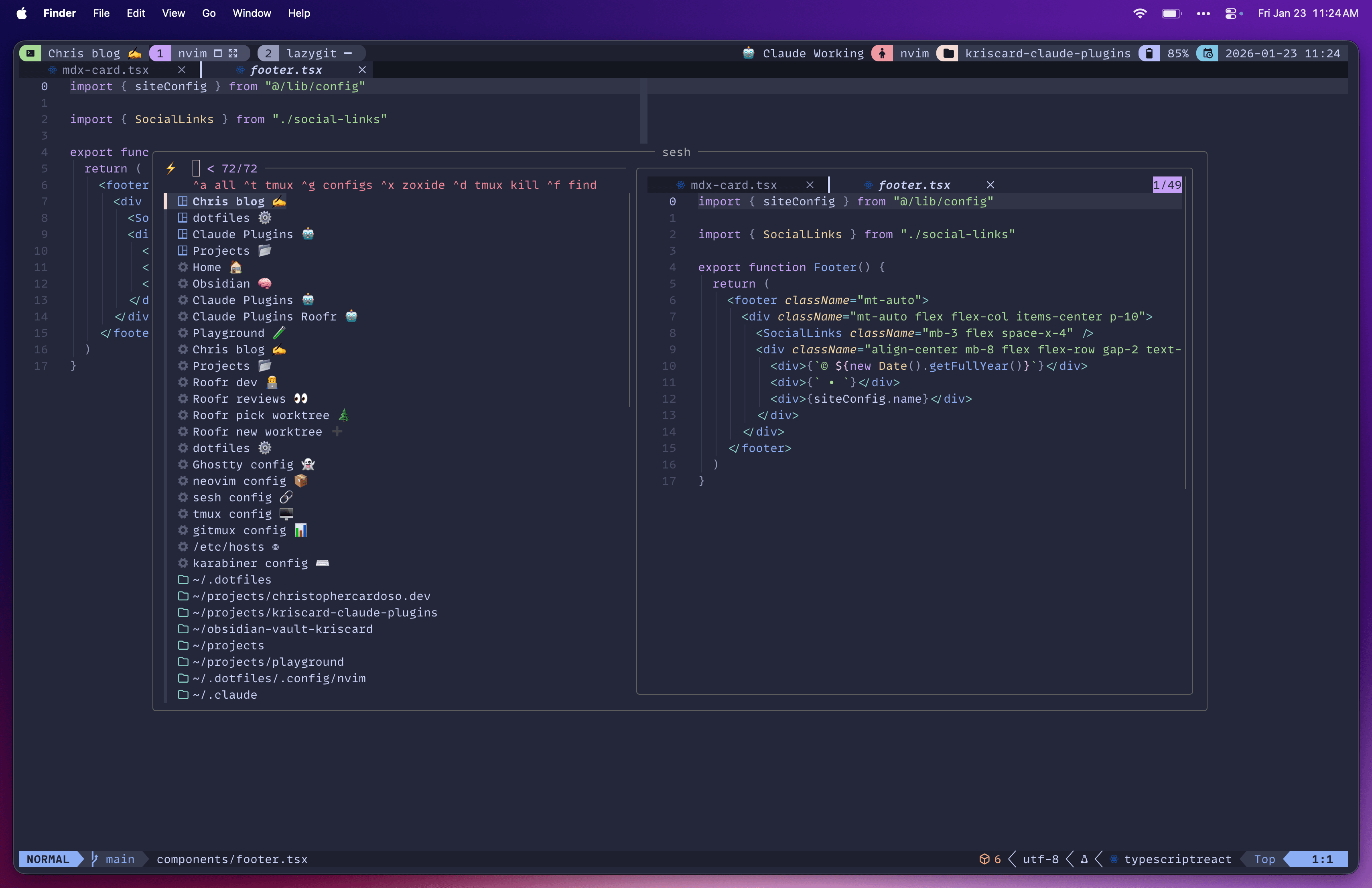
The game-changer for me was Sesh (opens in a new tab), a session manager that turns tmux session management from tedious to magical.
Here's what makes it so good: instead of manually creating and remembering tmux sessions, Sesh automatically discovers your projects and lets you fuzzy-find them. I press Ctrl-a e (or Cmd-K from Ghostty, thanks to that keybind I showed earlier), and I get a beautiful fuzzy finder popup showing:
- 🪟 Existing tmux sessions - jump back to running sessions
- 📁 Zoxide directories - projects I've visited recently
- ⚙️ Config files - quick access to dotfiles
- 🔎 Find mode - search for any directory
# ~/.config/tmux/tmux.conf - Sesh binding

bind-key "e" run-shell "sesh connect \"$(
  sesh list --icons | fzf-tmux -p 80%,70% \
    --no-sort --ansi --border-label ' sesh ' --prompt '⚡  ' \
    --header '  ^a all ^t tmux ^g configs ^x zoxide ^d tmux kill ^f find' \
    --bind 'ctrl-a:change-prompt(⚡  )+reload(sesh list --icons)' \
    --bind 'ctrl-t:change-prompt(🪟  )+reload(sesh list -t --icons)' \
    --bind 'ctrl-g:change-prompt(⚙️  )+reload(sesh list -c --icons)' \
    --bind 'ctrl-x:change-prompt(📁  )+reload(sesh list -z --icons)' \
    --bind 'ctrl-f:change-prompt(🔎  )+reload(fd -H -d 2 -t d -E .Trash . ~)' \
    --bind 'ctrl-d:execute(tmux kill-session -t {2..})+change-prompt(⚡  )+reload(sesh list --icons)' \
    --preview 'sesh preview {}'
)\""
But it gets better. I have predefined sessions in my sesh.toml config:
# ~/.config/sesh/sesh.toml

[[session]]
name = "dotfiles 📁"
path = "~/.dotfiles"
windows = ["lazygit"]  # Automatically opens lazygit in a window

[[session]]
name = "Chris blog 📝"
path = "~/projects/christophercardoso.dev/"
windows = ["lazygit"]

[[session]]
name = "tmux config"
path = "~/.dotfiles/.config/tmux"
startup_command = "nvim tmux.conf"  # Opens nvim with the config file
preview_command = "bat --language=bash --color=always ~/.dotfiles/.config/tmux/tmux.conf"
So when I type "blog" in the Sesh picker, it jumps to my blog project, creates a tmux session if it doesn't exist, and automatically opens lazygit. It's basically "teleport to project" on steroids.
I also set these Sesh-recommended settings:
bind-key x kill-pane # skip "kill-pane 1? (y/n)" prompt
set -g detach-on-destroy off  # don't exit tmux when closing a session
The detach-on-destroy off is clutch - when I close a session, instead of exiting tmux entirely, it switches to the next session. No more accidentally closing my entire tmux server.
A Quick Note on Catppuccin
I use Catppuccin Macchiato (opens in a new tab) for literally everything.
Ghostty? Catppuccin Macchiato. Tmux? Catppuccin Macchiato. Neovim? Catppuccin Macchiato. Starship? Catppuccin Macchiato. Bat, eza, lazygit? All Catppuccin Macchiato.
I'm obsessed with it. The color palette is perfect - not too vibrant, not too washed out. The mauve, lavender, and pink accents pop without being distracting. And the fact that it has official ports for almost every tool I use means I can have a consistent theme everywhere. I even use a catppuccin macchiato theme in spotify for my entire apps to be consistent.
I set THEME_FLAVOUR=macchiato as an environment variable in my Ghostty config, and all my tools pick it up automatically. It's one of those small things that makes using the terminal feel cohesive and polished.
GNU Stow: Symlink Magic for Dotfiles
Here's the problem: all these config files live in different places. Ghostty wants ~/.config/ghostty/, tmux wants ~/.config/tmux/, zsh wants ~/.zshrc. How do you back them up? How do you sync them across machines?
The answer is GNU Stow (opens in a new tab). It's a symlink farm manager, which is a fancy way of saying it creates symlinks from a central folder to where the configs need to live.
My dotfiles structure looks like this:
~/.dotfiles/
├── .config/           # Gets stowed to ~/.config/
│   ├── ghostty/
│   ├── tmux/
│   ├── nvim/
│   ├── sesh/
│   └── starship.toml
├── zsh/              # Gets stowed to ~/
│   ├── .zshrc
│   └── zsh.d/
├── .claude/          # Gets stowed to ~/.claude/
└── Brewfile
One command - stow .config - and Stow creates symlinks so ~/.config/ghostty/config points to my version-controlled file at ~/.dotfiles/.config/ghostty/config. I can push my dotfiles to GitHub and clone them on any new machine.
The beauty of Stow is that it handles conflicts gracefully and keeps everything organized. My dotfiles repo is my source of truth, and everything else is just symlinks pointing to it.
The Dotfiles CLI: One-Command Everything
Here's where I got a bit extra: I built a custom CLI tool to manage my dotfiles. It's a bash script called dotfiles that lives in the root of my repo, and it's basically a Swiss Army knife for dotfiles management.
# Clone and setup everything
git clone https://github.com/kriscard/dotfiles.git ~/.dotfiles
cd ~/.dotfiles
./dotfiles init
That's it. One command, and it:
- Backs up your existing configs
- Installs Homebrew and all packages from the Brewfile
- Creates all symlinks with Stow
- Applies macOS settings
- Sets up tmux plugins, zsh, and everything else
The dotfiles CLI has commands for everything:
| Command | What It Does |
|---|---|
dotfiles init | Complete system setup |
dotfiles doctor | Health check & diagnostics |
dotfiles sync | Sync configurations (Stow) only |
dotfiles packages | Install/update Homebrew packages |
dotfiles backup | Backup existing configs before changes |
dotfiles macos | Apply macOS settings (Finder, Dock, etc.) |
dotfiles ds_store | Clean all .DS_Store files from dotfiles |
All commands support --dry-run, --force, and --verbose flags.
The doctor command is my favorite - it checks if all the tools are installed, if Homebrew packages are up to date, if you're using zsh, and gives you a health report:
$ ./dotfiles doctor

🔍 Running system diagnostics
==============================

✅ git is installed
✅ curl is installed
✅ zsh is installed
✅ Homebrew is installed
✅ All packages are up to date
✅ Using zsh shell

System health check passed! 🎉
The whole script is ~700 lines of bash with colors, prompts, and error handling. It's probably overkill, but setting up a new machine is now so smooth that I actually look forward to it.
The Brewfile: One File for Everything
Inside my dotfiles repo, there's a Brewfile that lists every package I use:
# ~/.dotfiles/Brewfile (excerpt)

# Modern CLI tools
brew "bat"          # Better cat
brew "eza"          # Better ls
brew "fd"           # Better find
brew "ripgrep"      # Better grep
brew "fzf"          # Fuzzy finder
brew "zoxide"       # Smart cd
brew "lazygit"      # Git TUI
brew "gh"           # GitHub CLI
brew "jq"           # JSON processor
brew "stow"         # Symlink manager

# Terminal & Shell
brew "tmux"
brew "sesh"
brew "starship"
brew "zsh-autosuggestions"
brew "zsh-syntax-highlighting"
brew "zsh-history-substring-search"

# Terminal emulators
cask "ghostty"

# Fonts (with ligatures)
cask "font-monaspace"
cask "font-monocraft"
Running brew bundle --file=Brewfile installs everything. Combined with Stow for configs and the dotfiles CLI, I can go from fresh macOS to fully configured in under 30 minutes. Most of that is download time.
Getting Started
You don't need all of this. Seriously. My setup evolved over years one tool at a time.
If you're curious about trying any of this check out my dotfiles on GitHub (opens in a new tab). Run ./dotfiles doctor to see what you're missing, or ./dotfiles init --dry-run to preview what would happen.
What's Next?
This terminal setup is just the foundation. In Part 2, I'll dive into my Neovim configuration - the plugins, keybindings, and workflows that turned Vim from intimidating to indispensable. We'll explore LSP setup, Telescope fuzzy finding, and how I integrated everything with Tmux.
Until then, try one tool at a time. Maybe start with eza or zoxide - small changes that make a big difference. Your terminal setup should grow with you, not overwhelm you.
Happy hacking!